What is the client portal
Understand what your clients can see and do in their portal, how they sign in, and what always stays private.
The client portal is a private space where your clients follow their projects, review your work, sign agreements, pay invoices and ask for help. It carries your brand, not ours, so it feels like part of your agency.
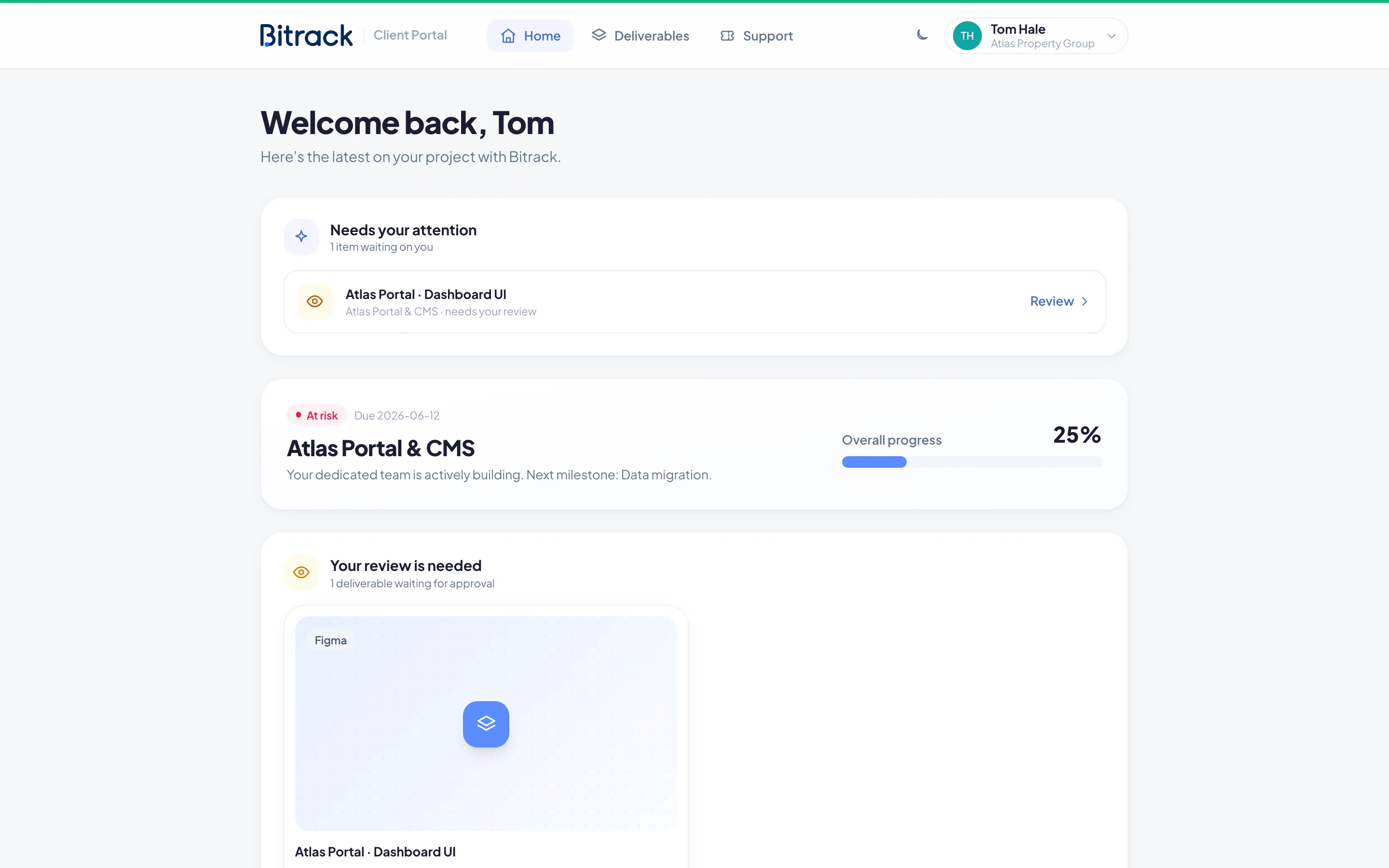
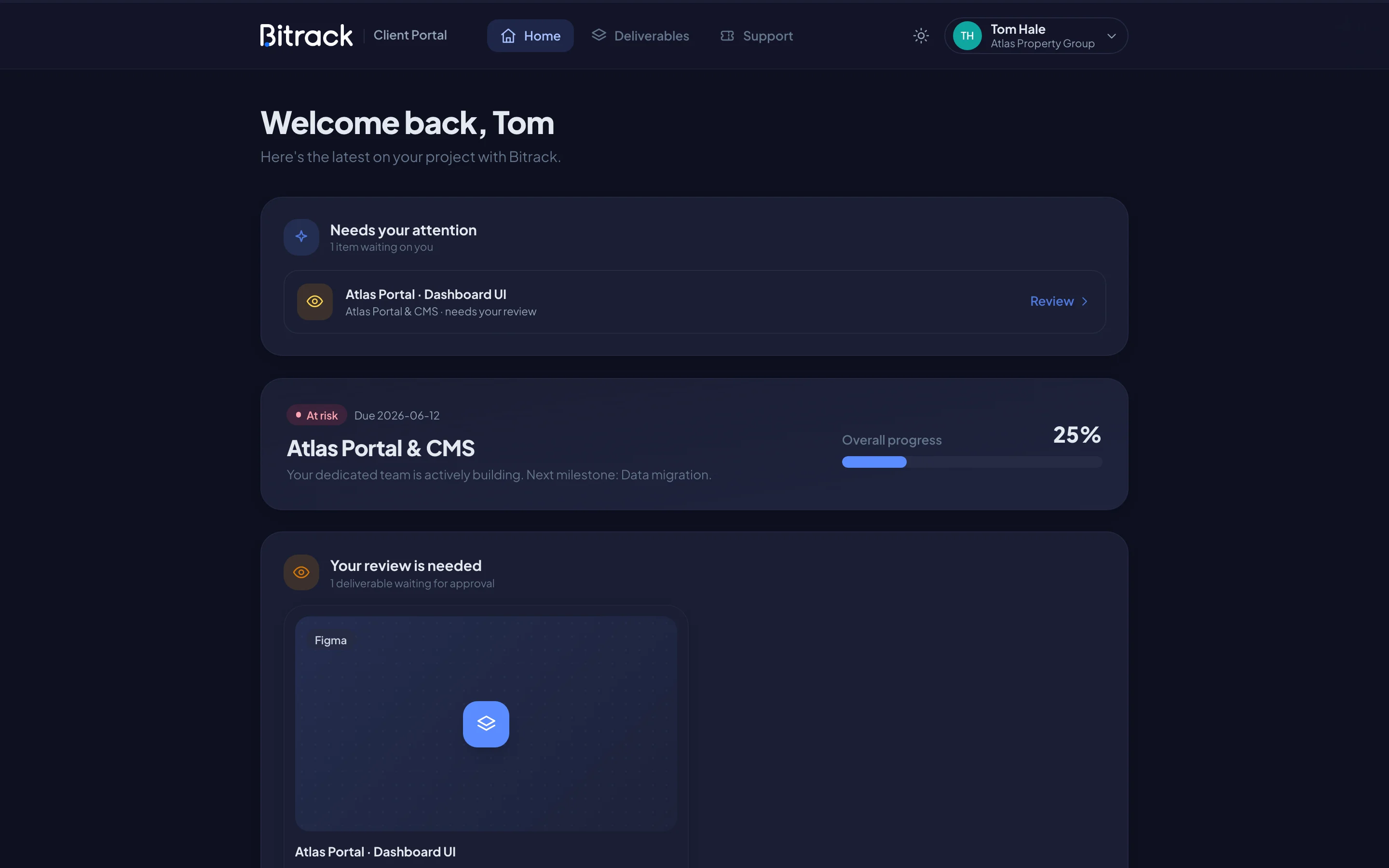
What your client sees
When a client person signs in, they land on Home. It shows:
- A welcome line with how many active projects they have with you.
- Needs your attention: work to review, agreements to sign and invoices to pay. When nothing is waiting, they see You're all caught up.
- Coming up: meetings they're invited to, milestones and due dates for the next 60 days.
- Your projects: each project they can see, with its progress.
- Recent activity and, if you use Tickets, their latest support requests.
If someone can see only one project, Home opens straight onto that project, with its milestones, the team working on it and what's waiting for review.
Across the top (or at the bottom on a phone), they find:
| Tab | What's in it | Who sees it |
|---|---|---|
| Home | Their projects, what needs them and what's coming up | Everyone |
| Deliverables | Work you've shared for review | Everyone |
| Billing | Invoices, proposals, contracts and hours reports | Client admins, and members with billing access |
| Support | Their tickets and New ticket | Everyone, when your workspace uses Tickets |
Their account menu adds Activity log (everything that happened on their account) and, for client admins, Manage team & access. They can also switch between light and dark mode.
Your brand, everywhere
The portal uses your workspace name, logo and colours, and its sign-in page shows your logo. The emails it sends, such as invitations and sign-in codes, come from your agency's name too. Set these up once in Company and brand.
Passwordless sign-in
Clients never create or remember a password.
- They open your portal's sign-in page and enter their work email.
- They choose Email me a sign-in link.
- We email them a sign-in link and a 6-digit code. They either open the link, or type the code on the Check your e-mail page. The code is handy when the email is on another device.
The link and the code work once and expire after 15 minutes. If they need another, they choose Send a new code.
The first email a person gets is their invitation. It has an Open the portal button and a code that last 7 days, so they can open it the next day. Their first sign-in accepts the invitation, and their status on your side changes from Invited to Active.
What clients never see
Every page of the portal only shows what belongs to that person's own client, and only the projects they've been given. They never see:
- Other clients, or projects that haven't been shared with them.
- Your internal tasks, internal notes and internal notes on tickets.
- Budgets and costs.
- Your team's calendar. They only see events they're invited to.
- Drafts. Proposals, contracts and invoices appear only once you send them.
If someone opens a link to something they can't see, the portal simply says it can't be found.
Find your portal's address
Each client's page has a Portal access card. It lists the client's portal people and shows your portal's address. Choose Copy to copy the address and share it with your client.
Removing access
When you remove a portal person, their access ends at once and they're signed out. If you archive a client, its people can no longer sign in.