Invite client people
Give people at your client access to their portal, choose what each of them can see and do, and remove access when it's no longer needed.
You invite client people from the client's page. Each person gets their own sign-in and sees only what you give them.
To invite or change portal people, you need permission to edit clients. By default, Owners, Admins, Managers and Project Managers have it.
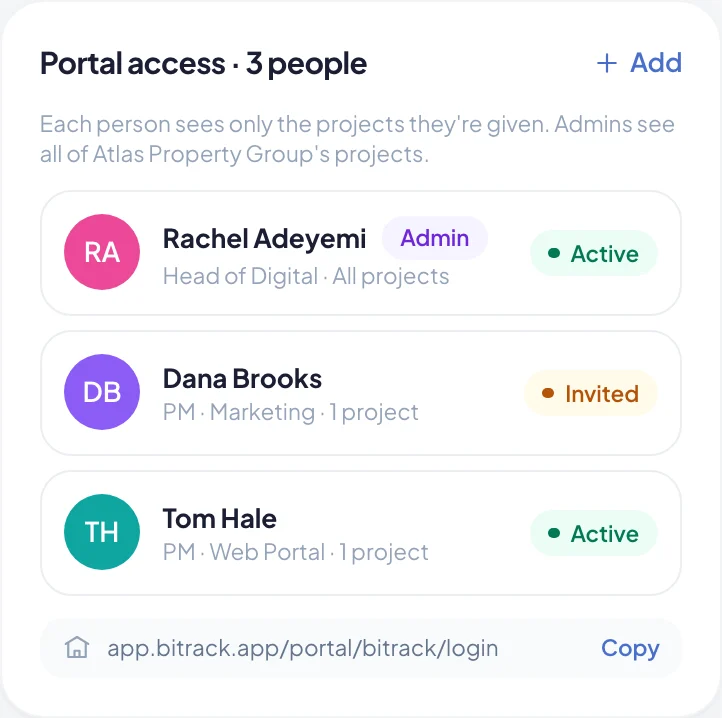
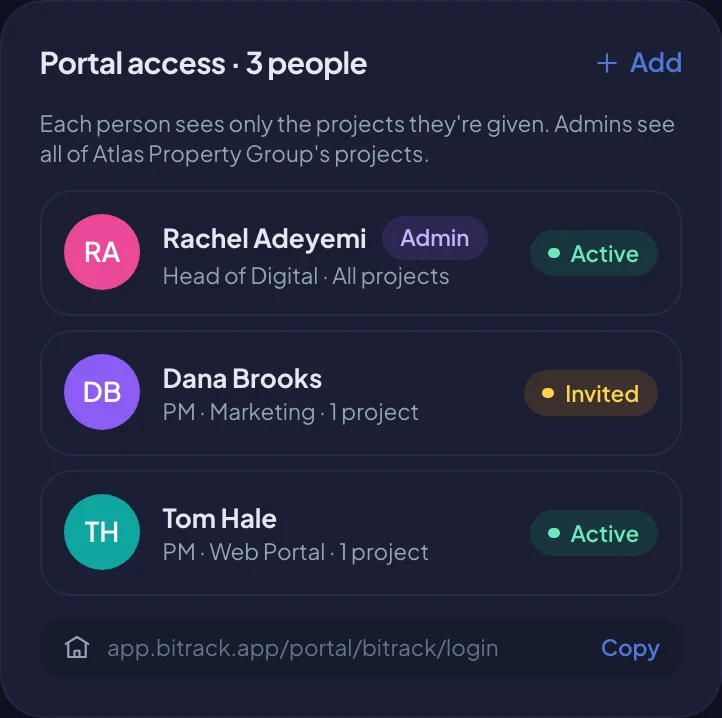
Invite someone
- Open Clients and choose the client.
- In the Portal access card, choose Add.
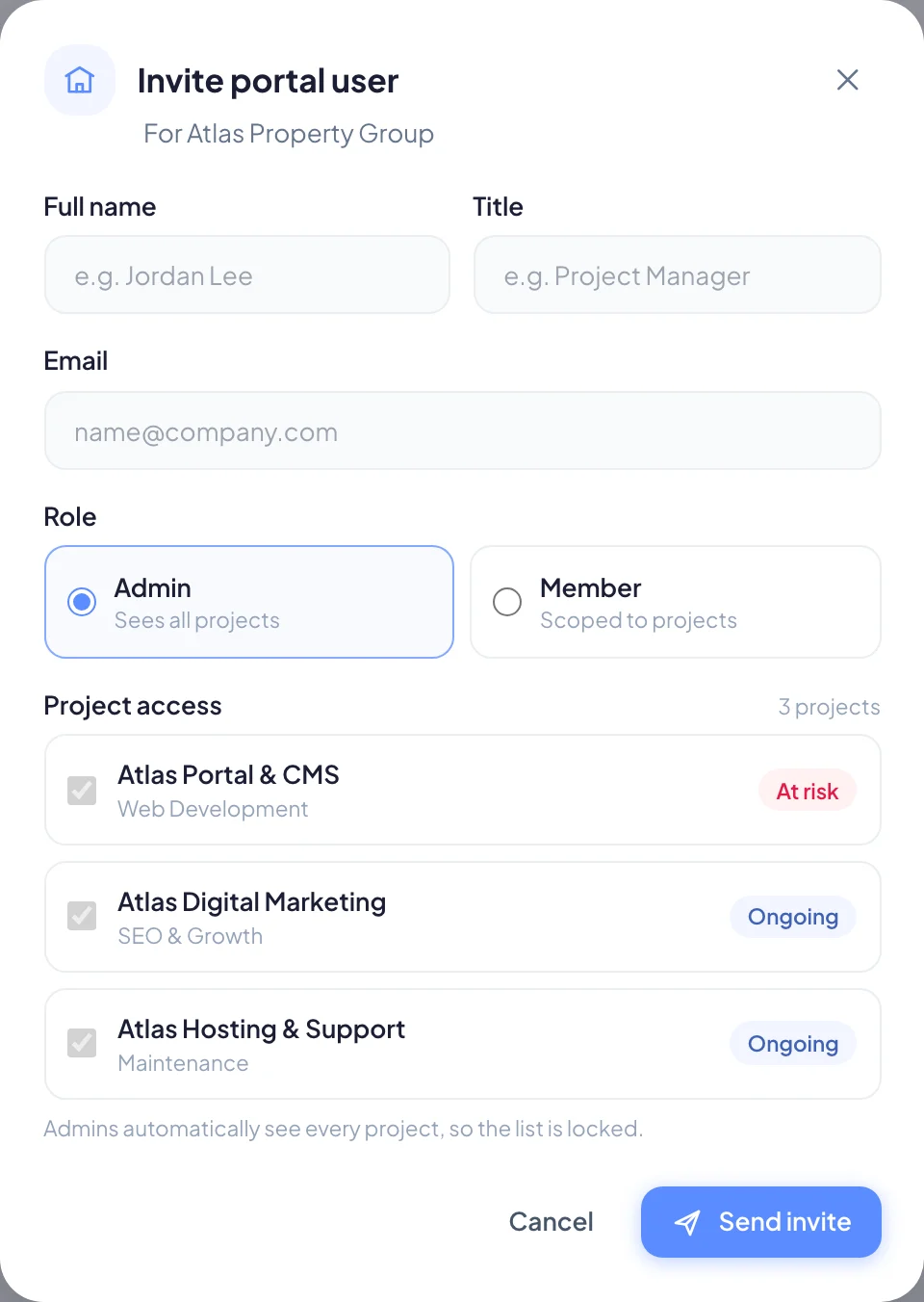
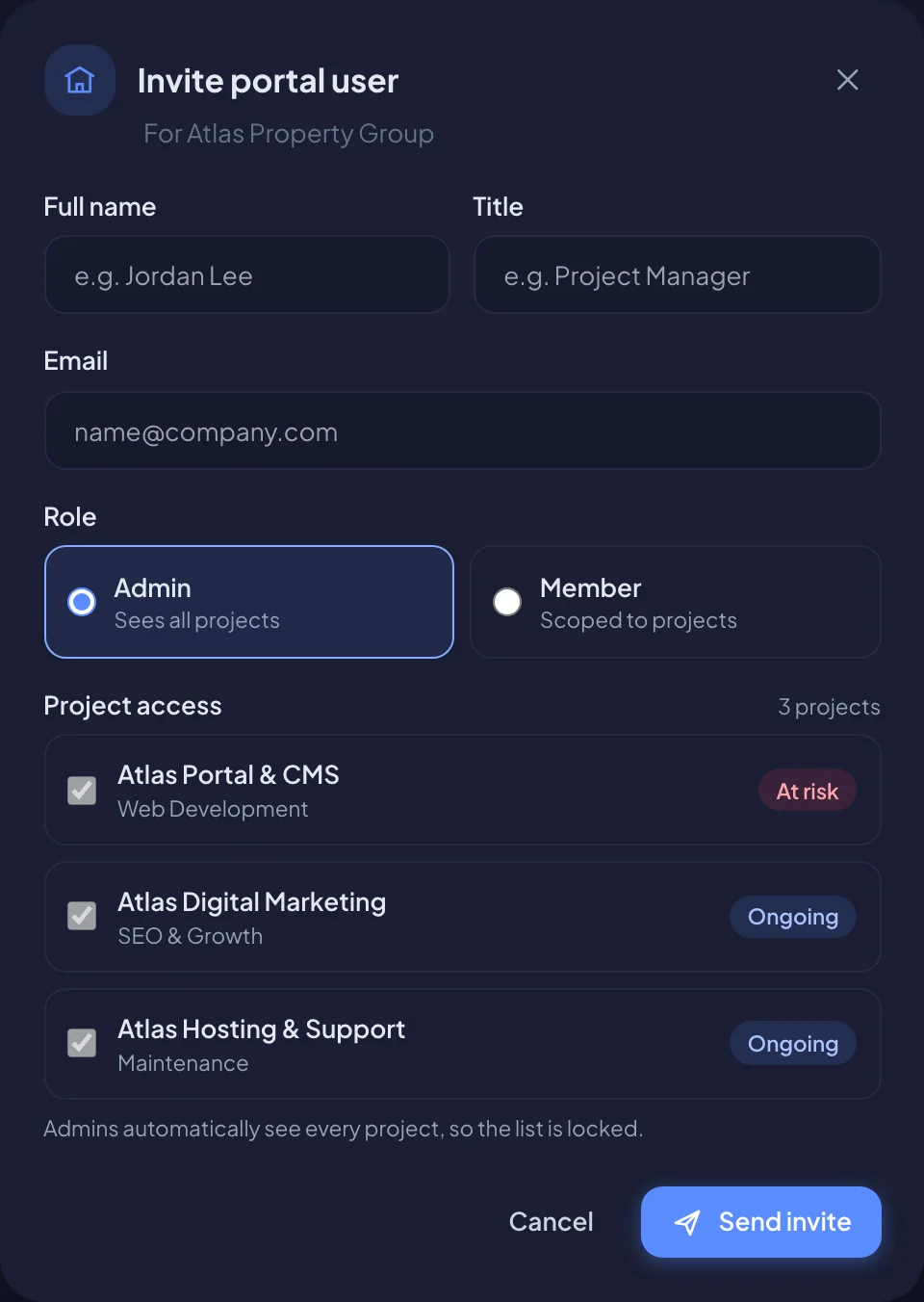
- Enter their Full name, their Title (optional) and their Email.
- Choose a Role: Admin or Member.
- For a member, tick the projects they should see under Project access.
- For a member, choose what else they can do under They can also.
- Choose Send invite.
They get an email saying your agency invited them to their client portal, with an Open the portal button and a 6-digit code. Both work for 7 days. After that, they sign in any time with their email. Read more in What is the client portal.
Admin or member
| Admin | Member | |
|---|---|---|
| Projects | Every project of that client, including new ones | Only the projects you tick |
| Approve and request changes on work | Yes | Only with Approve & return work |
| Invoices, payments, proposals and contracts | Yes | Only with Billing & payments |
| Manage their own team in the portal | Yes | No |
The two extra rights for members:
- Approve & return work: approve deliverables or request changes. Without it, a member can still read and comment.
- Billing & payments: view invoices, pay, and sign documents. Without it, the Billing tab doesn't appear for them.
See who has access
The Portal access card lists everyone at the client with portal access. Each person shows their title, how many projects they see (or All projects) and a status:
- Active: they've signed in.
- Invited: they haven't signed in yet.
- Suspended: they can't sign in.
Client admins also carry an Admin badge.
Change someone's access
- In the Portal access card, choose the person.
- Change their name, title, role, projects or extra rights.
- Choose Save access.
Their email address can't be changed. To use a different address, remove them and invite the new one.
You can also give or take away one project from the project itself. Open the project and find the Client access card. It lists the client's portal people with a switch for each member. Admins show All, because they always see every project. Choose Manage to go to the client's page.
Resend an invitation
If someone lost their invitation or it expired:
- In the Portal access card, choose the person. Their status must be Invited.
- Choose Resend invite.
They get a new link and code, valid for another 7 days. Once someone has joined, there's nothing to resend: they sign in with their email.
Remove someone
- In the Portal access card, choose the person.
- Choose Remove, then Remove access.
They lose access to the client's portal right away and are signed out. You can invite them again later.
Clients can manage their own team
Client admins can invite and manage their colleagues themselves. In the portal, they open their account menu and choose Manage team & access. From there they can invite a teammate, set each member's projects and rights, resend an invitation or remove someone.
People a client admin invites as members start with all of the client's projects and no extra rights, until the admin changes that. You see everyone they add in the Portal access card, and you can change their access at any time.