The credentials vault
Understand how the vault keeps passwords and keys safe, the three places they can live, and who can open what.
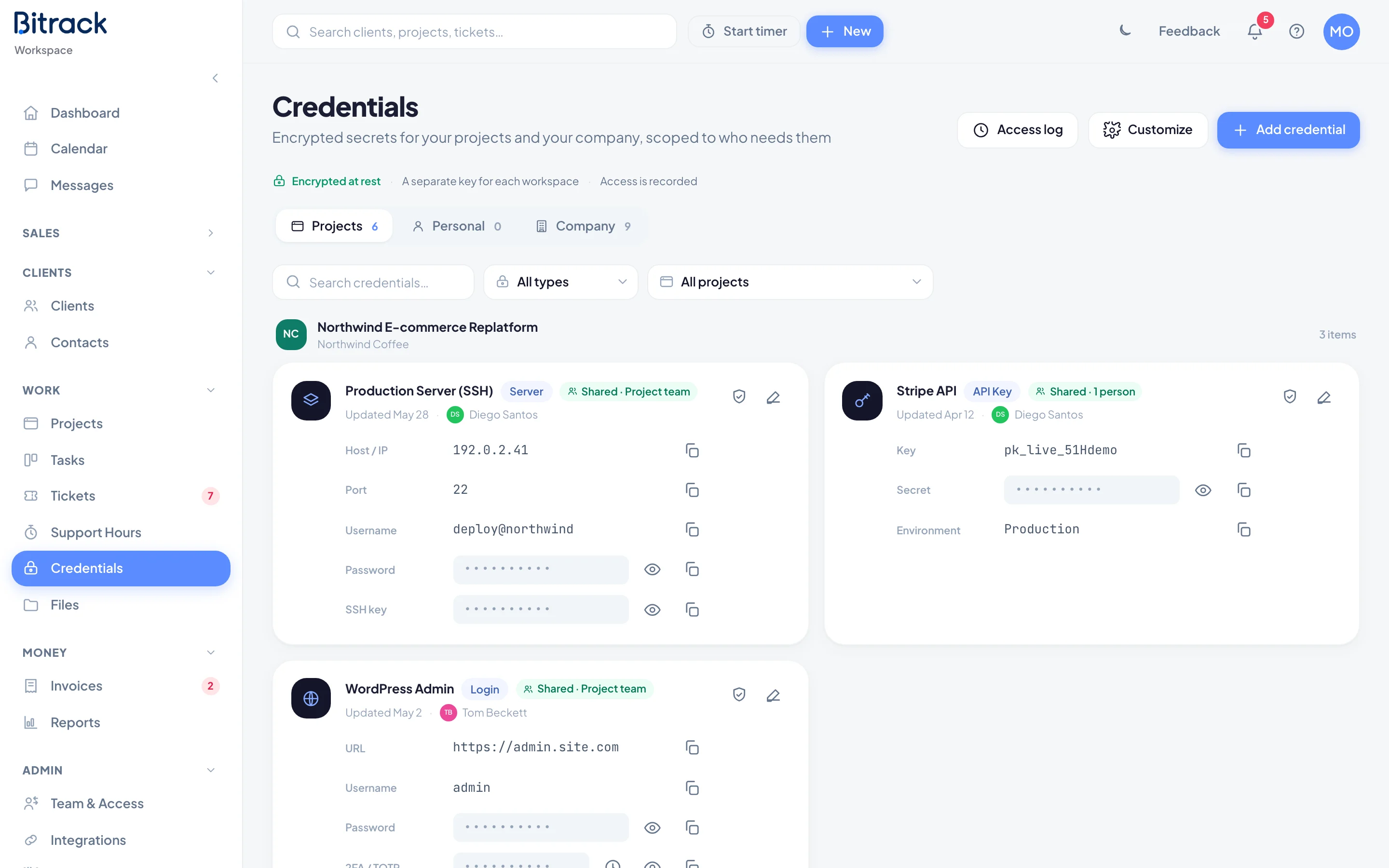
Credentials is your team's vault for passwords, API keys, server logins and other secrets. Everything is encrypted, nobody sees a secret unless it's shared with them, and every look is recorded.
How it keeps secrets safe
At the top of the page, you'll see three promises:
- Encrypted at rest: secrets are stored encrypted, never as plain text.
- A separate key for each workspace: your vault can't be opened with another workspace's key.
- Access is recorded: every reveal, copy, share and change is written to a history.
On top of that, the vault is deny by default. A new credential is private to the person who added it and to the workspace Owners until someone shares it. Secrets never appear in the page itself. Each one is fetched on its own, only when you ask, after you confirm it's you. See Reveal, copy and 2FA codes.
Three vaults
Every credential lives in one of three places. Each has its own tab.
| Tab | What goes there | Who can open it |
|---|---|---|
| Projects | A client project's logins, hosting, domains and keys | Owners, the person who added it, and whoever it's shared with |
| Personal | Your own logins, such as your email or accounts | Only you. Not even the workspace Owners |
| Company | Your agency's internal tools, Wi-Fi and accounts | Owners, the person who added it, and whoever it's shared with |
Projects groups credentials by project, with the client's name. Company groups them by category, such as Hosting & domains or Team tools. Personal is one list, private to you, and can never be shared.
The Company tab appears for Owners, for people whose role includes Company vault, and for anyone a company credential has been shared with.
Locked credentials
If you're on a project, you can see that its credentials exist even before they're shared with you. They show as Restricted, with the label, the type and who added it, but no values.
To ask for access, choose Request access. The card then shows Requested · pending until someone answers. See Share and temporary access.
Find a credential
Use the search box and the filters above the list:
- Search by label.
- Filter by type (for example Login or Hosting panel).
- On the Projects tab, filter by project.
Each card shows its type, when it was last updated and who added it. You may also see:
- Private: only Owners and the person who added it can open it.
- Shared: who else can open it, for example Shared · Project team + 2 people.
- Change due: the password hasn't changed in over 6 months.
What Owners control
Owners have the final say over the vault:
- Open anything in the project and company vaults. Personal vaults stay private, even from Owners.
- Share and revoke access, and approve or deny requests. Other roles can do this only if an Owner gives them Share & approve access.
- See the full history with Access log. See Access history.
- Restore deleted credentials from the Trash for 30 days.
- Customize the vault: credential types, company categories and starter kits. People with Company vault and edit rights can do this too.
Roles and their vault permissions are set in Team & Access. Read more in Roles and permissions.
Delete a credential
You can delete a credential you added if your role allows deleting. Owners can delete any project or company credential.
- Choose the edit icon on the credential.
- Choose Delete, then Delete credential.
A project or company credential moves to the Trash, and Owners can restore it for 30 days. A personal credential is removed for good.