Add a credential
Store a new password, key or login in the right vault, with the fields that suit it and an optional 2FA secret for live codes.
Adding a credential takes a minute. Pick where it belongs and its type, and Bitrack shows the right fields.
Set up the vault first
A new workspace's vault starts empty. The first time an Owner or Admin opens Credentials, they see Set up your vault and pick what the team does:
| Starter kit | What it adds |
|---|---|
| Digital agency | Client websites, hosting and domains, social and ad accounts, analytics |
| IT services / MSP | Servers, network devices, VPN, Wi-Fi, tenant admin, backups and licences |
| Software / SaaS team | Cloud consoles, databases, SSH keys, repos and CI/CD, app stores, env secrets |
| Marketing / content | Social media, ad platforms, email marketing, analytics, design and stock tools |
Pick one or more and choose Set up vault, or choose Just the basics. Every kit also adds Login, API Key and Other. Nothing is added twice, and everything can be renamed, re-fielded or removed later.
Until the vault is set up, other people see The vault isn’t set up yet and are asked to check with an Owner or Admin.
Add a credential
- Open Credentials and choose Add credential.
- Enter a Label, for example Production Server.
- Under Where does this belong?, choose A project, Just me or Our company.
- Pick the Project or, for the company vault, the Category.
- Choose a Type. The fields below change to match it.
- Fill in the fields. Secret fields hide what you type.
- Choose Add credential.
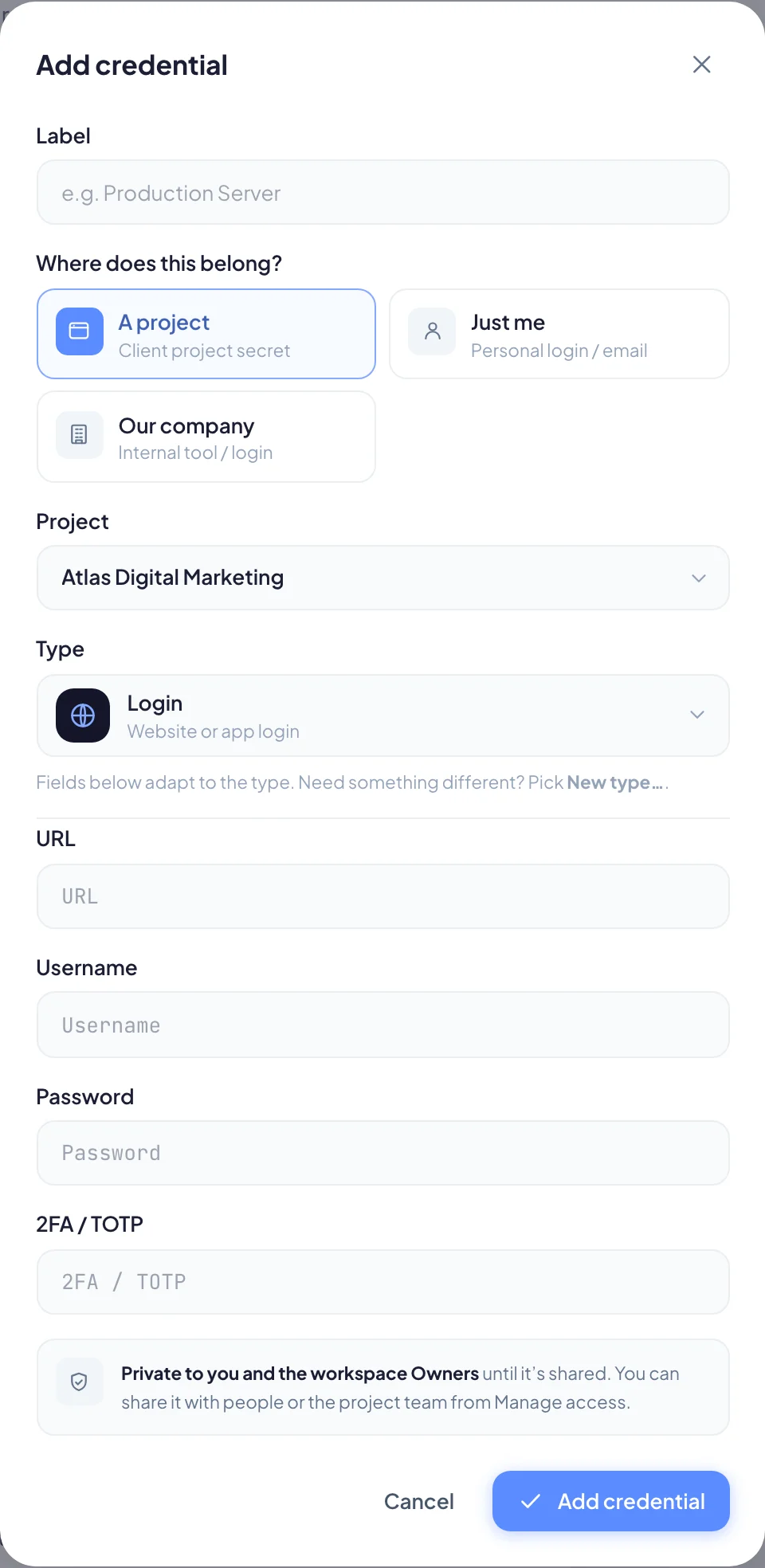
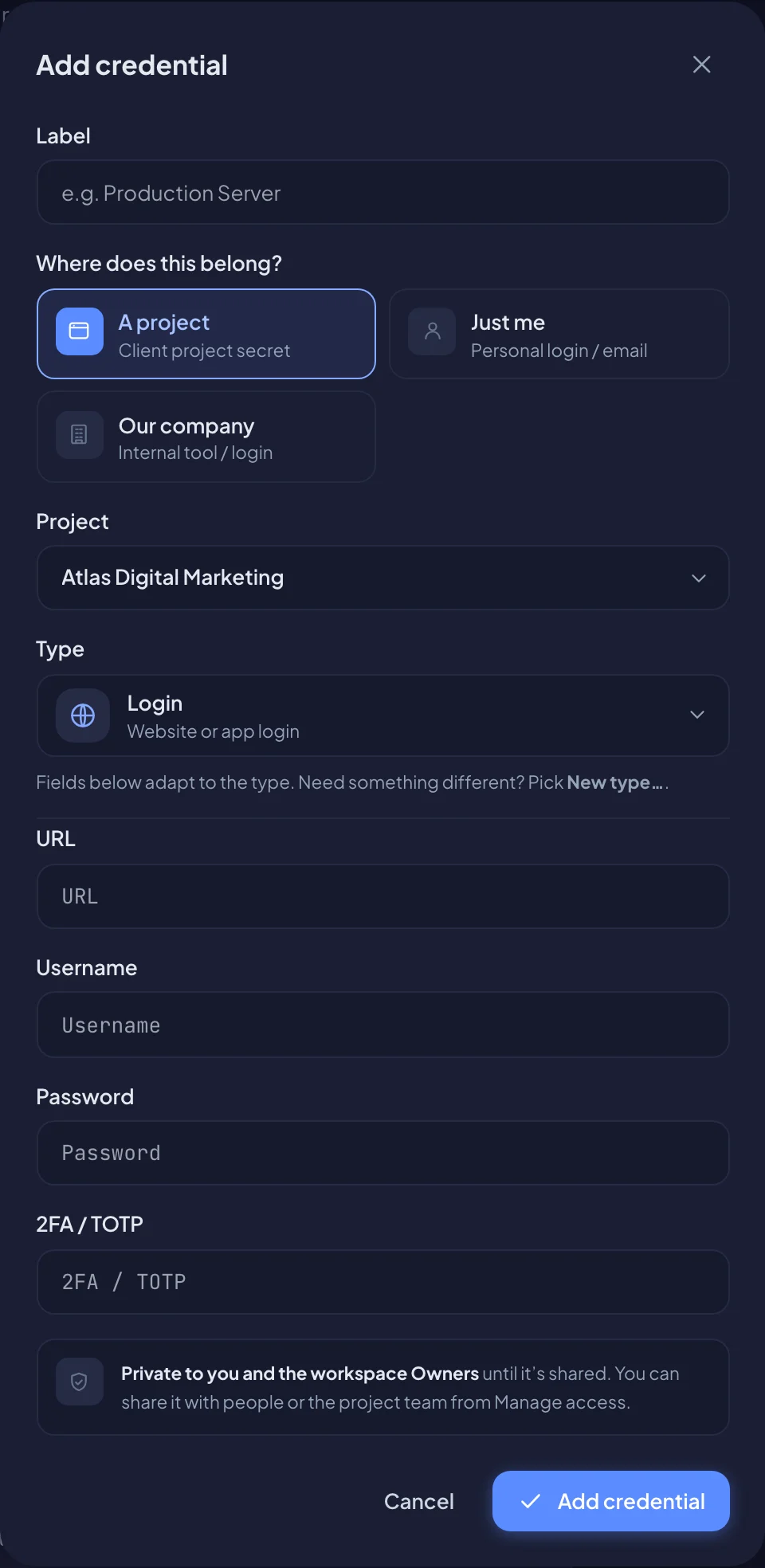
Our company appears only if you can add to the company vault. Owners can, and so can people whose role includes Company vault. You can add to any project you can see.
A note at the bottom of the form reminds you who can open it:
- Just me: only you can ever see it, not even the workspace Owners.
- A project or Our company: private to you and the workspace Owners until it's shared.
Types and their fields
Each type comes with its own fields. Some examples:
| Type | Fields |
|---|---|
| Login | URL, Username / email, Password, 2FA / TOTP secret |
| API Key | Service, Key / client ID, Secret, Environment |
| Hosting panel | Panel URL, Username, Password, Server IP, Nameservers |
| Server | Host / IP, Port, Username, Password, SSH key |
| Domain & DNS | Domain, Registrar / DNS provider, Login, Password, 2FA / TOTP secret, Renews on |
Fields like passwords, secrets, keys and tokens are secret fields. They're always hidden until someone with access reveals them.
If the right type isn't there, people who can customize the vault can choose New type… at the bottom of the type list and build one.
Add a 2FA secret for live codes
Many types, including Login, have a 2FA / TOTP secret field. Store the account's two-step secret there, and anyone with access can see a live 6-digit code instead of using a phone.
- When you turn on two-step sign-in for the account, the service shows a QR code. Look for the option to show the setup key instead.
- Paste that key into 2FA / TOTP secret. A full
otpauth://link works too. - Save the credential.
A clock icon then appears next to that field. See Reveal, copy and 2FA codes.
Edit a credential
- Choose the edit icon on the credential.
- Change what you need and choose Save.
Stored secrets are never shown while you edit. A secret field shows unchanged. Type to replace. Leave it empty to keep the value, or type a new one to replace it. To empty a secret, choose Clear next to it.
When a password changes, Bitrack notes the date. After 6 months without a change, the card shows Change due.