Share and temporary access
Give a person or a whole project team access to a credential, for a day, a week or with no end date, and take it back at any time.
Credentials start private. Sharing opens one credential to the people who need it, for only as long as they need it.
Who can share
Owners can share any project or company credential. Other people can share only if their role includes Share & approve access, and only credentials they can open themselves.
Personal credentials can never be shared.
Share a credential
- On the credential, choose the shield icon (Manage access).
- Under People with access, pick someone from Add a person….
- Choose Can view or Can edit.
- Choose how long: For 24 hours, For 7 days or No end date.
- Choose Share.
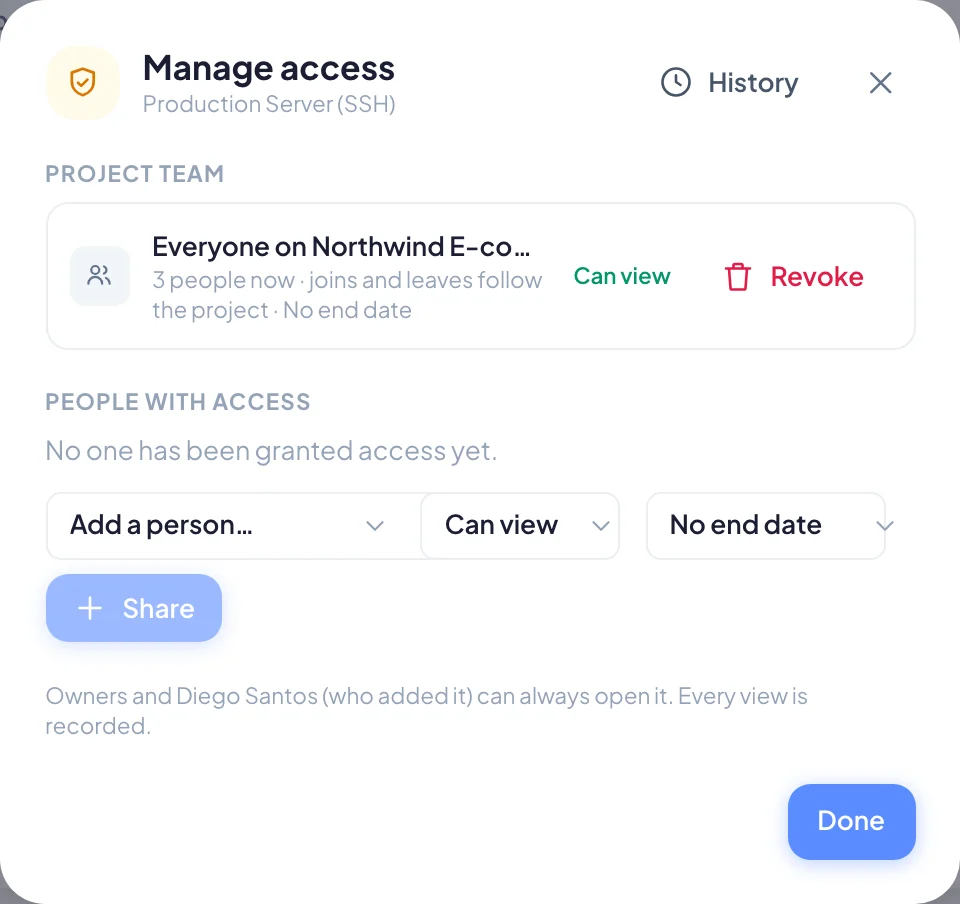
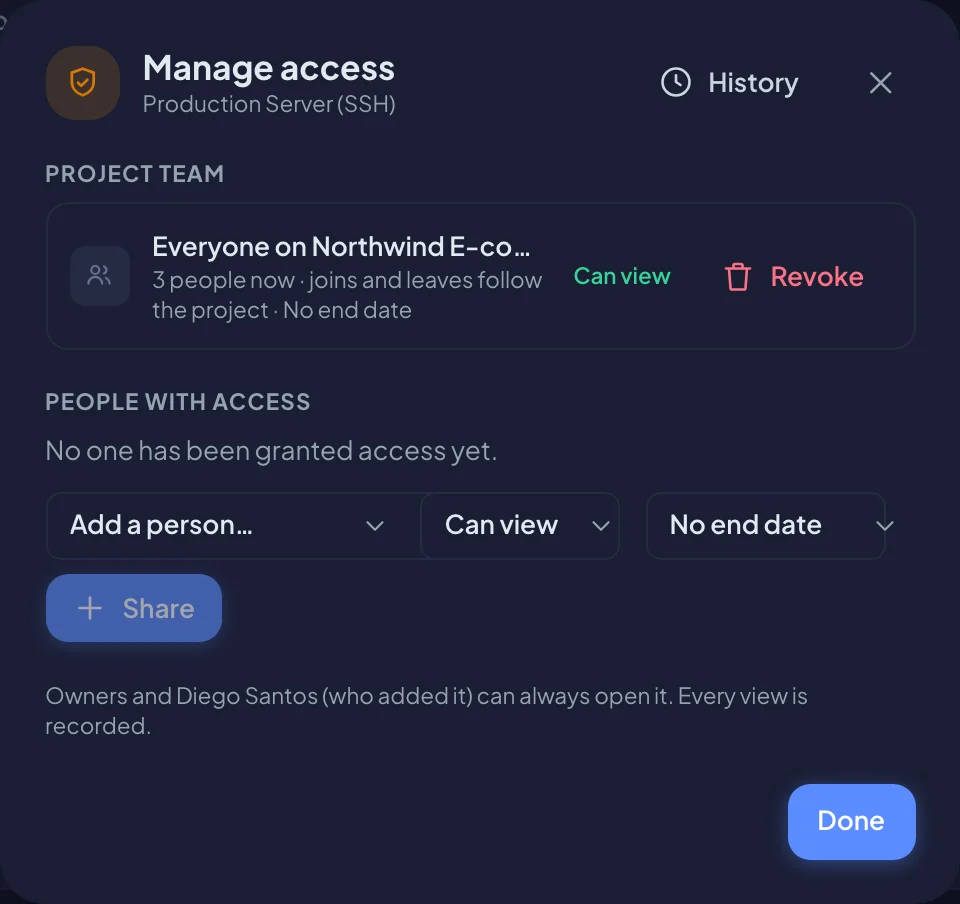
They can open the credential straight away. When a time limit runs out, their access simply ends. Nothing else is needed.
| Level | What they can do |
|---|---|
| Can view | Reveal and copy secrets, and see live 2FA codes |
| Can edit | All of the above, plus change the credential, if their role allows editing |
Share with a project team
For a project credential, the Project team section offers to share it with Everyone on the project.
- Choose Can view or Can edit.
- Choose how long.
- Choose Share.
This follows the project: people who join the project get access, and people who leave it lose access. The section shows how many people are on the team now.
Take access back
- Open Manage access on the credential.
- Next to the person or the project team, choose Revoke.
Access ends at once. Each person's line shows their level, how long their access lasts and who gave it.
Requests for access
People on a project can see its credentials even when they can't open them. These show as Restricted, and anyone can choose Request access.
When someone asks, people who can share see the request in two places:
- At the top of Credentials, under access requests awaiting your review.
- In Manage access on that credential, under Pending requests.
To answer:
- Pick how long to grant it for. For 7 days is selected unless you change it.
- Choose Approve or Deny.
When you approve, the person can open the credential straight away.
Everything is recorded
Every share, revoke, request, approval and denial is written to the credential's history, along with every reveal and copy. Owners can read it from History in Manage access, or from Access log for the whole vault. See Access history.