Reveal, copy and 2FA codes
See or copy a secret safely, confirm it's you when asked, and use live 2FA codes without reaching for a phone.
Secrets stay hidden until you ask for them. Each one is fetched on its own, after you confirm it's you, and every look is recorded.
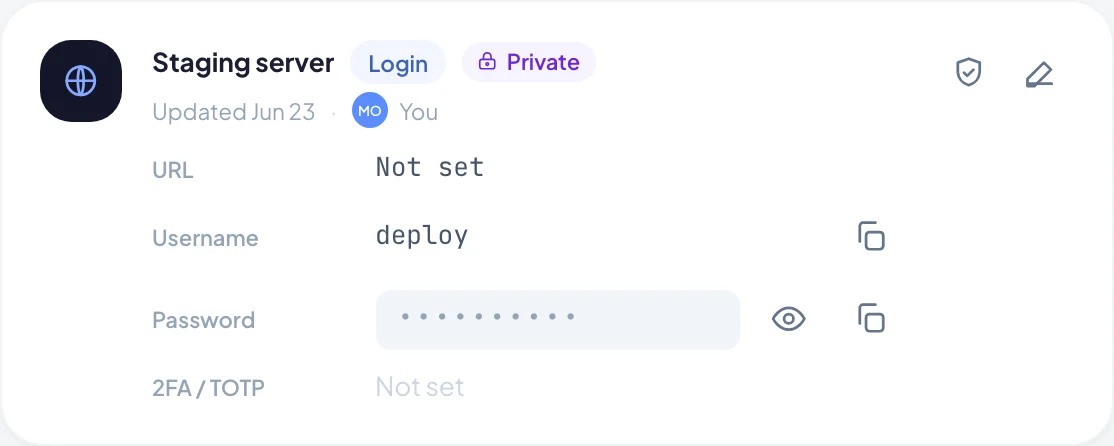
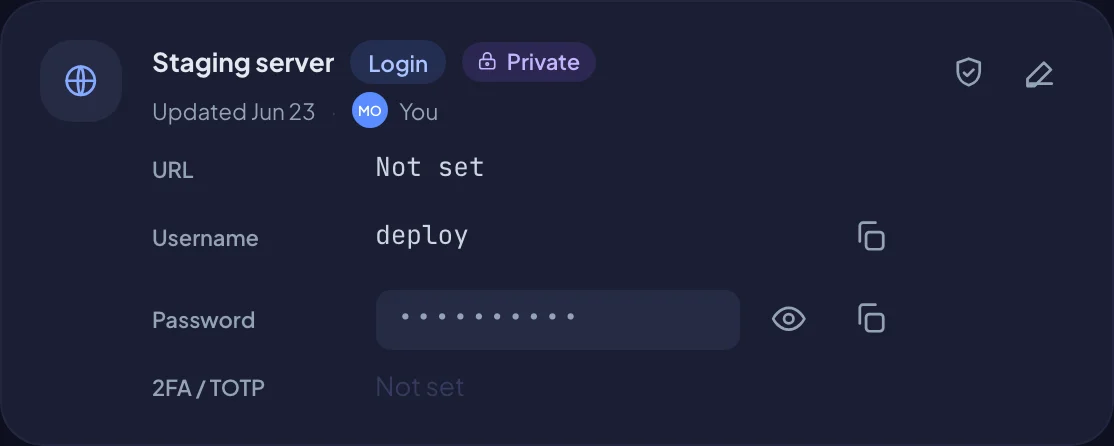
Reading a credential
Each credential card lists its fields:
- Ordinary fields, like a URL or username, show their value. Choose the copy icon to copy it.
- Secret fields, like a password or key, show dots. Use the buttons next to them to reveal or copy.
- A secret field with nothing stored shows Not set.
Confirm it's you
The first time you reveal or copy a secret, Bitrack asks you to Confirm it’s you. This stops anyone using a laptop left unlocked, or a stolen session, from emptying the vault.
- Enter Your password and choose Confirm.
- If you use an authenticator app, you can choose Use a code from my authenticator app instead.
- If you sign in with Google and have no password, choose Confirm with Google. You come back to the page afterwards. Open the secret again to see it.
You won't be asked again for 15 minutes. After that, Bitrack asks once more.
Reveal a secret
- Choose the eye icon (Reveal) next to the field.
- Confirm it's you if asked.
The value shows in place of the dots. It hides itself again after 30 seconds. To hide it sooner, choose Hide.
Copy a secret
- Choose the copy icon (Copy) next to the field.
- Confirm it's you if asked.
You'll see Copied to clipboard. After 30 seconds, Bitrack clears your clipboard, as long as the Bitrack tab is still in front. Paste it before then.
Live 2FA codes
If a credential has a 2FA secret stored, its field shows a clock icon (Show 2FA code).
- Choose the clock icon.
- Confirm it's you if asked.
A 6-digit code appears, with a small ring that shows how long it has left. When it runs out, a new code appears by itself. Choose Copy to copy the code, or the close icon (Hide code) to put it away. The code stops refreshing after two minutes.
The 2FA secret itself never leaves Bitrack. Only the current code is sent to your screen. To set one up, see Add a credential.
What gets recorded
Each reveal, copy and 2FA code is written to the credential's history, with your name, the field, the time and where it came from. A 2FA code is recorded once every 10 minutes per person, not every time it refreshes. Values are never recorded.
Owners can read the history. See Access history.
If you can't open a secret
If a credential shows as Restricted, it hasn't been shared with you. Choose Request access and an Owner will review it. See Share and temporary access.