Messages basics
Talk with your team in project channels, team channels, direct messages and groups.
Messages is your team’s chat, right next to the work. Every project has its own channel, and you can message a teammate, start a group, or create a channel for a topic.
Open it from Messages at the top of the sidebar. A count shows when you have unread messages.
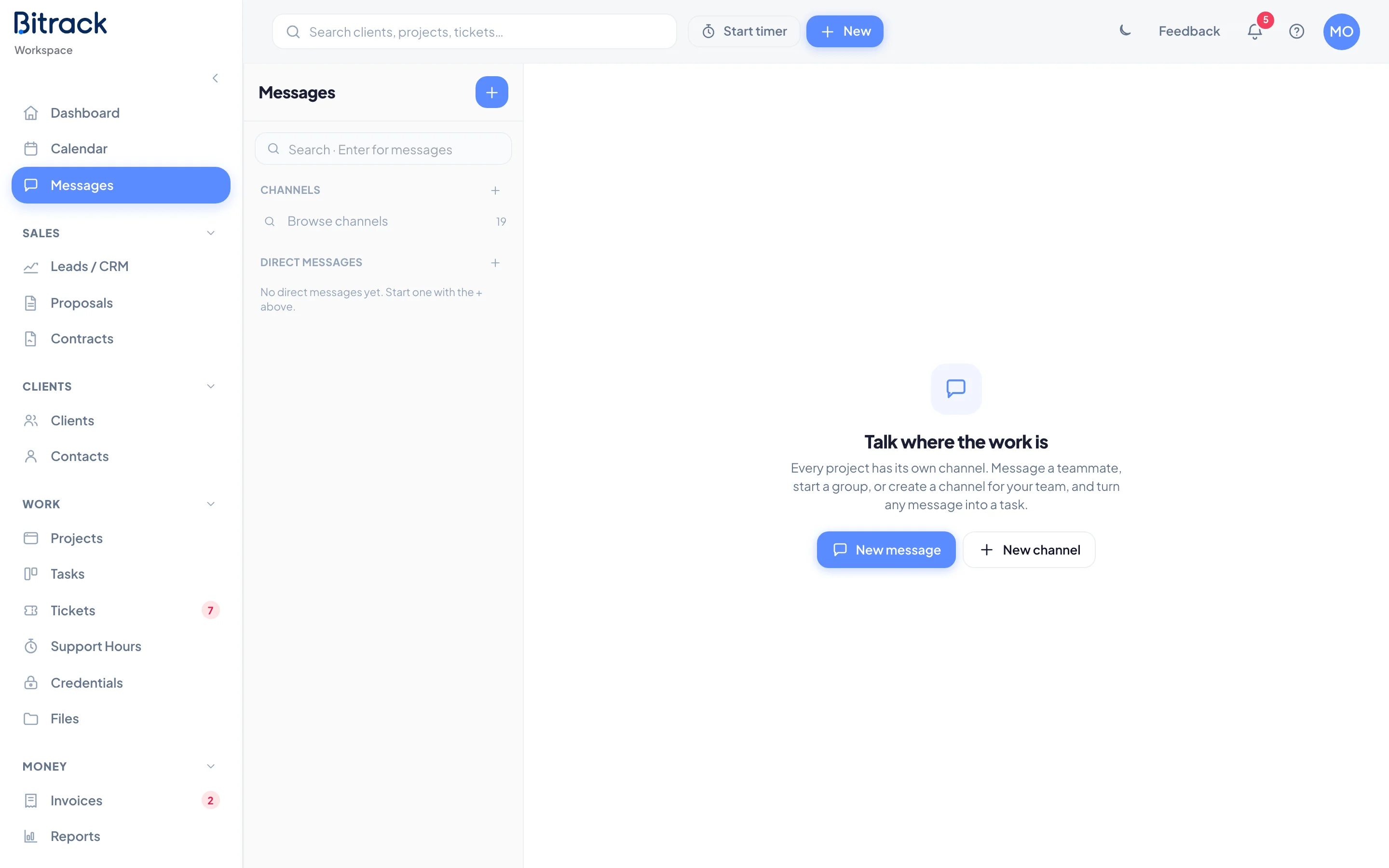
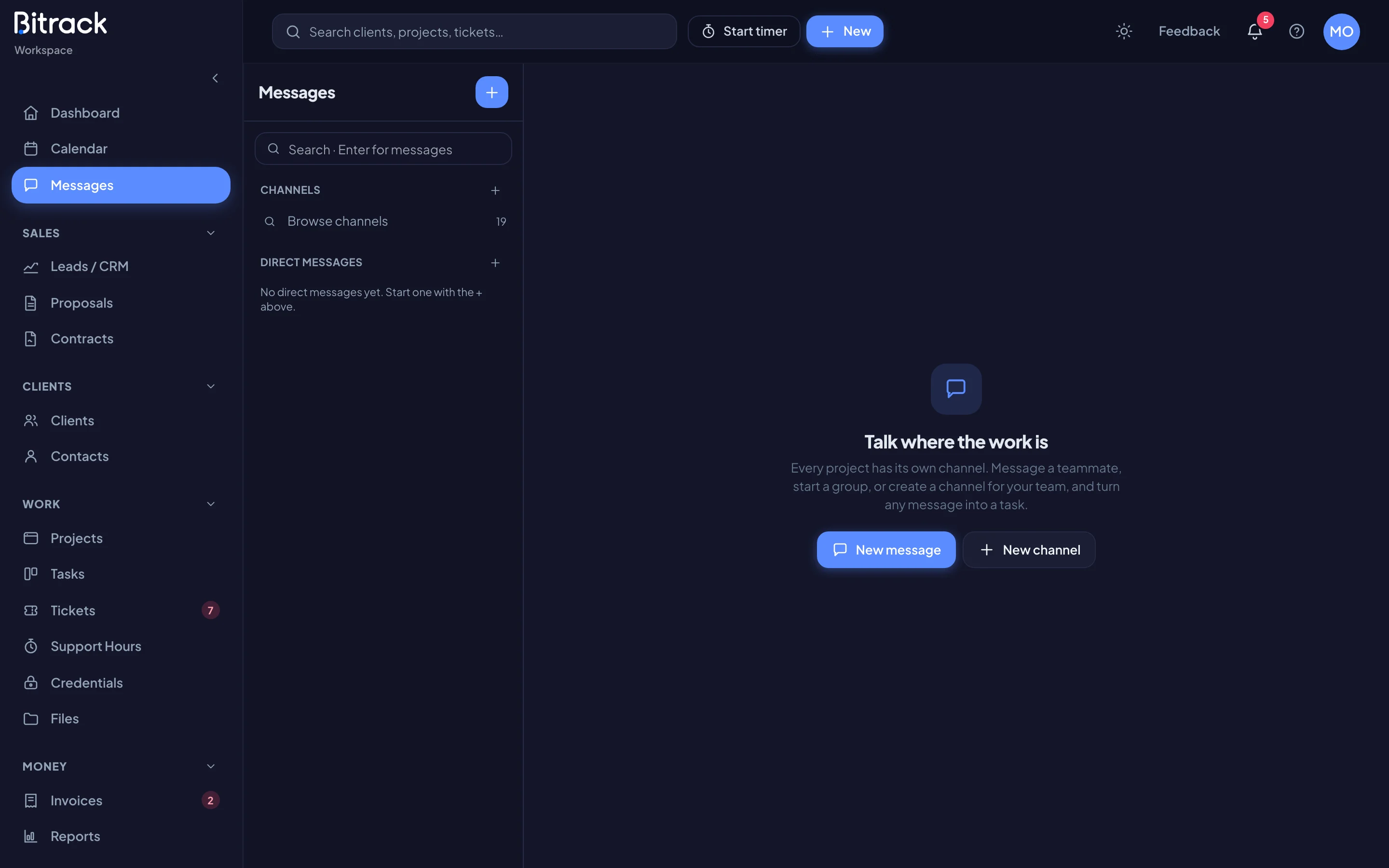
The conversation list
The left side lists everything you’re in:
- Channels: project channels (with a project icon), team channels (with #) and private channels (with a lock).
- Direct messages: one-to-one chats and groups, with the last message underneath.
Unread conversations are shown in bold with a count. Choose one to open it on the right.
Project channels
Each project has a channel for everyone on it. You find it in two places: in Messages, and on the project itself in the Chat tab.
- Everyone on the project team is in the channel automatically.
- The project lead, and Owners and Admins, can add people who aren’t on the project, or remove people from the chat.
- If you leave a project’s channel, you can join it again while you’re on the project.
Direct messages and groups
- Choose + next to Direct messages (or the + at the top of the list).
- Search for people and tick them.
- Choose Start chat for one person, or Start group for several.
You only ever have one direct message with each person, so starting a new one opens your existing chat. Anyone in a group can add people, rename it and set a topic.
Create a channel
- Choose + next to Channels.
- Enter a Name (for example design or sales-team) and, if you like, a Topic.
- Switch on Private if only the people you add should find and read it.
- Under Add people, pick who to invite. This is optional.
- Choose Create channel.
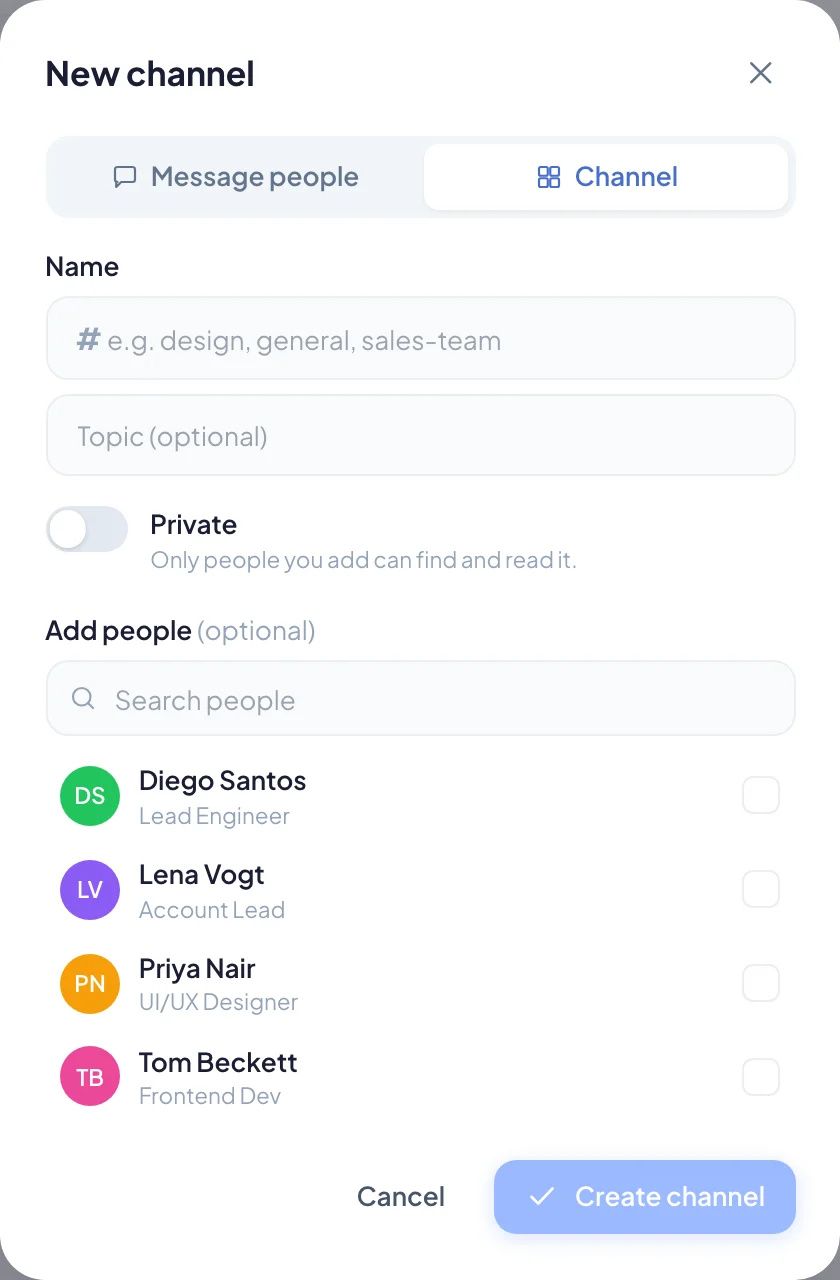
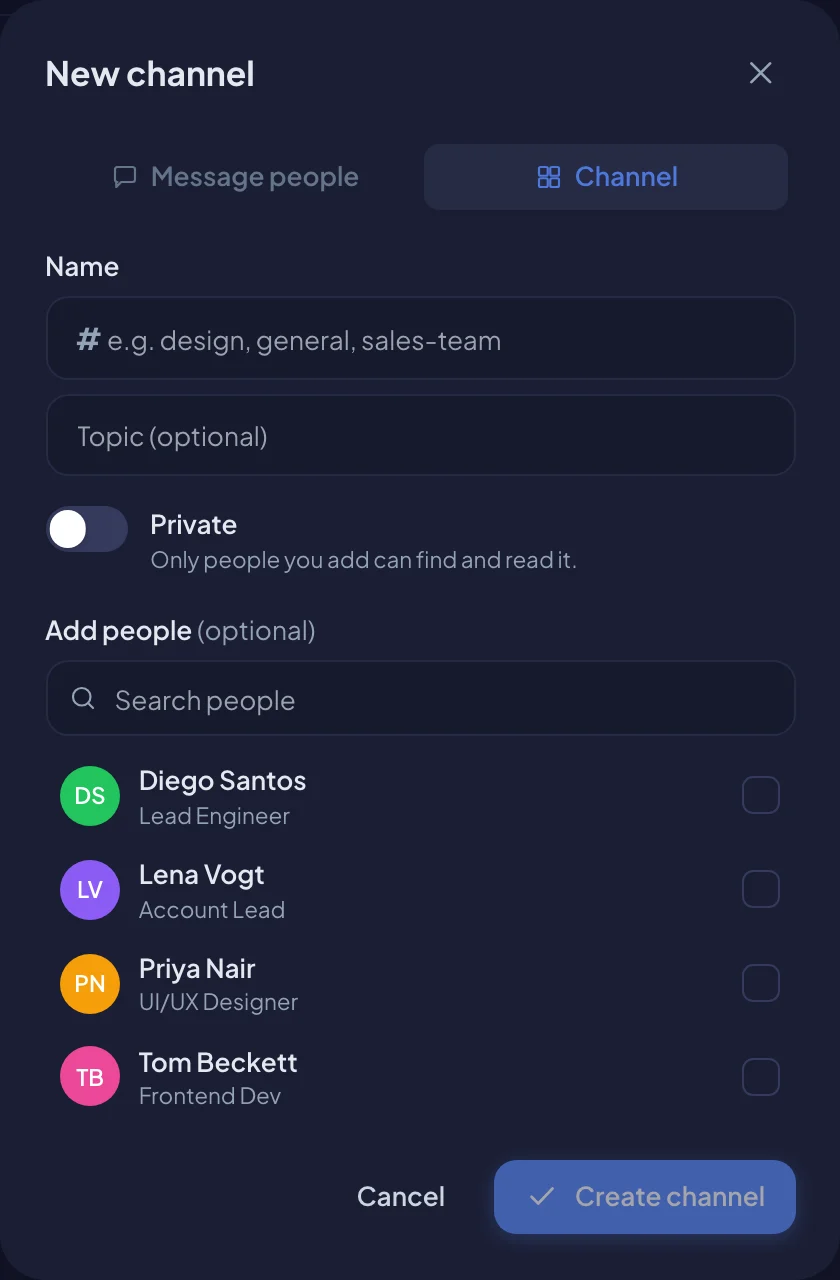
You become the channel’s admin. Channel names must be unique in your workspace.
Browse and join channels
Choose Browse channels under your channels to see the team channels and project channels you can join. Choose a channel to look at it first, or Join to join it.
When you view a channel you haven’t joined, a bar at the bottom says so. Choose Join there to post and get its unread counts.
Conversation settings
Choose the ⋯ (Conversation settings) button at the top of a conversation:
| Option | What it does |
|---|---|
| Mute | Stops the conversation counting as unread. Choose Unmute to undo. |
| Members | Shows who’s in it. If you can manage it, choose Add people. New people can read the whole history. |
| Rename · topic | Changes a channel’s or group’s name and topic. |
| Leave | Leaves the conversation. For a private channel or group, someone has to add you back. |
| Archive channel | Removes the channel and its messages for everyone. |
In a team channel, its admins (and Owners and Admins) can manage it. From Members they can also Make admin or Remove admin for others.
Search your messages
Use the search box at the top of the list. Type to filter conversations by name, or press Enter to search the text of your messages. Choose a result to jump to that message. Choose Clear to go back to your list.
Next, learn about threads, mentions, files and turning messages into tasks in Messages tips.